

Your Instagram profile photo is tiny, so the background matters more than most people think. On mobile, it often shows at about 110 × 110 pixels, which means a busy backdrop can make your face or logo hard to spot fast. This is a critical part of creating a consistent Instagram aesthetic that attracts followers.
If I were picking a tool from this list, I’d keep it simple:
- Adobe Express if I want editing and background changes in one place
- Photoroom if I want lots of exports and batch-ready use
- Canva if I care about brand layout and team use
- Pixelcut if I edit mostly on my phone
- remove.bg if I just want a fast cutout
- Clipdrop if I want AI background changes plus cleanup tools
- Fotor if I want a lower starting price
A few points matter most before I choose:
- Background options: remove, swap, blur, color fill, or AI scene
- Free plan limits: credits, export caps, watermarks, or locked tools
- Export quality: Instagram photos should start at 320 × 320 px or more
- Mobile use: some tools work much better on phones than others
The biggest takeaway is simple: the best tool depends on how I work. A one-photo update needs something different than team branding or batch edits.
Quick Comparison
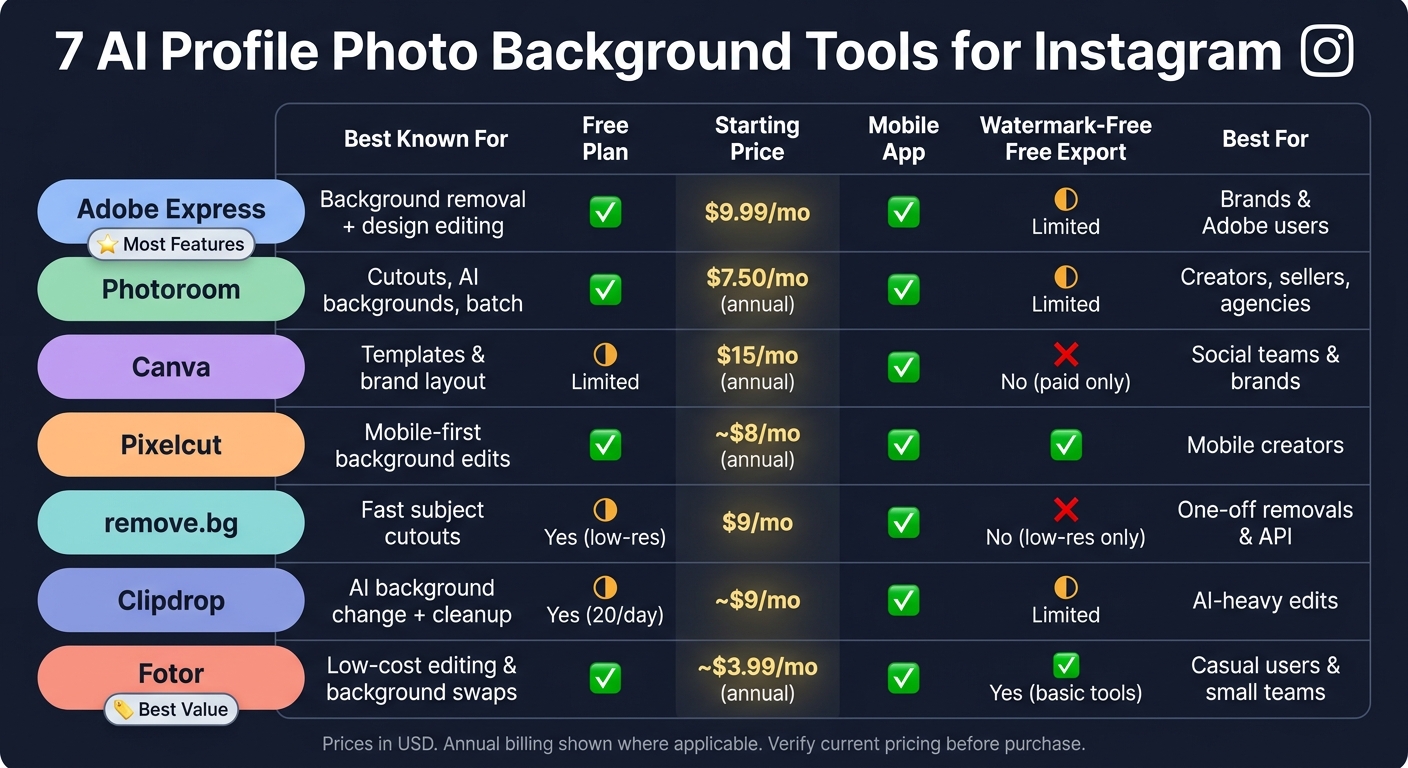
7 AI Profile Photo Background Tools for Instagram: Side-by-Side Comparison
| Tool | Best known for | Free option | Starting price | Best for |
|---|---|---|---|---|
| Adobe Express | Background removal plus design editing | Yes | $9.99/month | Adobe users and brands |
| Photoroom | Cutouts, replacement, AI backgrounds | Yes | $7.50/month billed annually | Creators, sellers, agencies |
| Canva | Templates and brand layout | Yes, but remover is limited | $18/month or $15/month billed annually | Social teams and brands |
| Pixelcut | Phone-first background edits | Yes | About $8/month billed annually | Mobile users |
| remove.bg | Fast subject cutouts | Yes, low-res only | $9/month | One-off removals and API use |
| Clipdrop | Background change, cleanup, relight | Yes | About $9/month | AI-heavy edits |
| Fotor | Low-cost editing and background swaps | Yes | About $3.99/month billed annually | Casual users and small teams |
Before I use any of them, I’d test one or two sample photos with hair, glasses, or jewelry, because those details show cutout problems right away. I’d also preview the image in a circle crop so nothing gets cut off when it goes live on Instagram. To ensure your content performs well beyond the profile picture, you can also use an Instagram post optimizer to refine your overall feed strategy.
sbb-itb-3c55afb
What to Look for in an AI Profile Photo Background Tool
For Instagram profile photos, four things matter most. These are the points that usually decide whether a tool feels smooth and usable or turns into a hassle.
Background editing options cover more than simple removal. A good tool may let you swap in a solid color, add blur, use a custom image, or build an AI scene. This is also where quality gaps show up fast. Hair, glasses, and earrings tend to expose weak edge detection right away.
Price and free-plan limits should be checked in U.S. dollars at the monthly rate, unless the tool only shows annual pricing. It also helps to separate a true free plan from a trial that runs on limited credits. Watch for a few common catches:
- How many exports you get
- Whether AI background generation uses credits
- Whether batch processing is locked behind a paid plan
For a baseline, Adobe Express lists a free plan at $0.00 with no credit card required.
Export quality is another big one, because free plans often cut corners here. Instagram profile photos are often recommended at 320 × 320 pixels in a square, 1:1 format. If a tool limits free downloads to low resolution, or puts a watermark on the final file, the result may not be clean enough to use. Before you settle on a workflow, check the actual download size and file type.
Mobile support and best-fit audience round out the list. A native iOS or Android app matters most for creators who shoot and edit on their phones. Brands usually care more about color consistency, templates, and repeatable sizing when building the perfect Instagram profile. Agencies tend to need batch processing, team access, commercial rights, and steady per-image pricing.
Use the table below to line up each tool with how you work.
| Evaluation point | Creators | Brands | Agencies |
|---|---|---|---|
| Background editing | Fast removal, blur, simple color swap | AI scenes, brand colors, templates | Batch changes, API access, reusable workflows |
| Free-plan value | No watermark, full-resolution download | Enough exports to test team images | Predictable quotas and commercial rights |
| Export quality | At least 320 × 320 px; transparent PNG useful | High-res files, consistent dimensions | Batch exports with dependable output quality |
| Workflow | Single image, mobile-first | Shared assets, repeatable brand styles | Team collaboration and volume processing |
Quick Comparison of the 7 Tools
Based on the criteria above, here’s a side-by-side look at what each tool does best, what you get for free, and who each one makes the most sense for. All paid prices below are starting prices in U.S. dollars.
| Tool | Primary background function | Free option | Starting paid price | Mobile | Output quality | Limits or watermark | Best fit |
|---|---|---|---|---|---|---|---|
| Adobe Express | Background removal, replacement, and design editing | Free plan available; mobile background removal available; check current limits | $9.99/month (Premium) | iOS, Android, and web | PNG, JPG, PDF, GIF; transparent PNG supported | Free plan has feature limits; verify current removal quota | Brands already using Adobe tools |
| Photoroom | Automatic cutout, background replacement, and AI background generation | Free cutouts only; export and resolution restrictions apply | Starts at $7.50/month, billed annually | iOS, Android, and web | High-resolution export reserved for paid plans; free output may be resolution-limited | Free exports are limited; verify current allowance | Product sellers, creators, and agencies needing repeatable cutouts |
| Canva | Design-first editor with background removal built into templates and brand designs | Free design platform and AI tools; background remover requires a paid plan | $12/month | iOS, Android, and web | PNG and JPG; transparent PNG tied to paid access | Background remover is paid on the free plan | Template-driven brands and social media teams |
| Pixelcut | Mobile-first cutout and AI background tool | Limited free background removal; export limits apply | $8/month, billed annually | iOS, Android, and web | PNG and JPG; resolution varies by plan | Free tier has export limits; check watermark rules | Mobile-first creators and product sellers |
| remove.bg | Fast, automated background removal | Free low-res preview, up to 0.25 MP | $9/month for 40 credits | Web only | PNG with transparency; full resolution requires credits or subscription | Free output is low-res only; higher resolution needs paid credits | Quick one-off cutouts and API-based workflows |
| Clipdrop | AI background removal, cleanup, and relighting | Up to 20 background removals per 24 hours | Starts at $9/month | Web only | PNG and JPG; resolution depends on plan | Daily free removal cap; verify current web and API entitlements | Creators and teams needing AI-enhanced cleanup |
| Fotor | Background remover and AI photo editor | Free basic background removal; HD and transparent PNG exports are paid | Starts at $5.24/month | iOS, Android, and web | JPG, PNG, PDF; transparent PNG and HD export locked to paid tiers | Free exports may be limited or watermarked | Budget-conscious creators and casual photo editors |
A few patterns stand out right away.
remove.bg is the most focused tool here. It does one job fast, but the free version keeps you at low resolution. Photoroom and Adobe Express give you more room to work, with removal, replacement, and editing in one workflow. And if price matters most, Fotor comes in with the lowest starting cost for creators who can live without top-tier export options.
The reviews that follow get into where each tool shines, where it feels cramped, and what kind of user it fits best. Choosing the right tool is a key part of optimizing your Instagram profile for better reach.
1. Adobe Express
Adobe Express works well if you want to remove a background and finish the design without bouncing between tools. You can upload a photo, cut out the subject, drop it onto a solid color, an Adobe Stock image, or your own background, then crop and export from the same editor.
Background Editing Options
Once the background is removed, you can use the round-frame option to preview how the image will look inside Instagram’s profile circle. That’s a small touch, but it helps. You can export as a transparent PNG if you want to reuse the cutout later, or choose JPG if you just need a finished profile photo.
That said, the free plan puts some limits on how much background editing you can do.
Pricing and Free-Plan Limits
| Plan | Price | What you get |
|---|---|---|
| Free | $0 | Basic editing, templates, effects, 25 generative AI credits/month, and limited background-removal Quick Actions |
| Premium | $9.99/month | Premium assets, additional AI credits, premium editing tools, and unlimited background-removal Quick Actions |
Free users can export in JPEG, PNG, PDF, and GIF. Background removal on the Free plan is limited, so it makes the most sense for occasional edits. If your project uses premium Adobe Stock content, Adobe may place a watermark on the Free plan.
Mobile Support and Export Quality
Adobe Express runs on the web, iOS, and Android. For the best result, start with a sharp, well-lit image where the subject stands apart from the background. Before you export, inspect the edges around hair, glasses, and hands. Then preview the photo inside a circular crop so nothing gets cut off.
Best Fit
Adobe Express is a good match for creators, small businesses, and Adobe-based teams that want a fast, branded profile image.
2. Photoroom
Photoroom works best when you need a clean cutout fast and want to swap the background without much setup. Upload a portrait, and Photoroom removes the background on its own. From there, you can drop in a solid color, use a template, or generate an AI scene from a prompt or theme.
Background Editing Options
You can upload a reference image or pick from preset themes for the background. The editor also includes tools for text, shapes, and shadows before you export. For Instagram profile photos, it helps to keep the subject centered so the circular crop doesn’t chop off part of the image.
Pricing and Free-Plan Limits
The Free plan includes background removal and up to 250 exports per month. Paid plans start at $7.50 per month when billed annually and include 1,000 exports per month plus 8,000 AI credits. If you need more room, the higher tiers increase the export cap to 3,000 on Max and 10,000 on Ultra.
| Plan | Monthly Exports | Notes |
|---|---|---|
| Free | Up to 250 | Limited background and AI features |
| Pro | 1,000 | Starts at $7.50/month when billed annually |
| Max | 3,000 | Higher export allowance |
| Ultra | 10,000 | Highest export allowance |
Exports are capped at 2K resolution, and each saved image counts as one export.
Export Quality and Watermarks
Photoroom supports PNG, JPEG, and WEBP exports. PNG is handy if you need transparency. JPEG is a solid pick for a finished Instagram-ready image. WEBP can be smaller in file size when your workflow allows it. Before exporting, zoom in and check hair edges, glasses, earrings, and shoulders at full size. It’s also smart to review the export preview and account terms before using images for client work.
Mobile Support and Best Fit
Photoroom runs on web, iOS, and Android, which makes it a good fit for phone-first creators. Brands can use it to keep colors consistent across profile images, and agencies can lean on it for batch edits. The free tier makes sense for one-off profile photos. High-quality visuals are a key part of any strategy to get more Instagram followers organically. Paid plans are a better fit for repeat work or managing many accounts.
If you want a workflow that leans more into templates, the next tool moves further in that direction.
3. Canva
Canva brings Brand Kits, templates, and background editing into one place. So you can remove a background, drop in a new one, and export the finished image without jumping between tools.
Background Editing Options
Canva's Background Remover cuts out the subject in one click. If the edges need cleanup, the erase and restore tools let you fine-tune the result. BG Generator can also create AI backgrounds for Pro, Teams, Education, and nonprofit accounts. The main editor is still free, but BG Generator needs a paid or eligible account.
A small tip here goes a long way: keep the subject centered and the background simple. That helps the final image stay clear inside a circular profile crop. Because of that, Canva works best when your profile photo also needs to line up with a bigger brand look.
Pricing and Free-Plan Limits
The Free plan costs $0 and includes one free Background Remover use. Canva Pro costs $18/month or $180/year in the U.S. ($15/month billed annually). Pro also includes background removal, transparent PNG exports, and Brand Kits.
| Plan | Price | Key Limits |
|---|---|---|
| Free | $0/month | Background Remover: one free use |
| Pro | $18/month or $15/month billed annually | Background removal, transparent PNG exports, Brand Kits |
| Teams / Education / Nonprofits | Varies | Eligible for transparent PNG downloads |
Export Quality and Watermarks
Canva exports edited photos without a watermark. Use PNG if you need transparency or want to reuse the cutout in other designs. Just note that transparent PNG downloads need a paid plan. Use JPG when transparency doesn't matter and a smaller file works better.
One limit is worth noting: Canva says images larger than 10 megapixels are downscaled to 10 megapixels after background removal.
Mobile Support and Best Fit
Canva's mobile app supports background removal, replacement, and export. If you're doing repeat client work, the paid plan makes more sense than the free tier because Brand Kits and templates can save a lot of time.
Canva is a good fit for creators, brands, and social teams that want background editing and design tools in their Instagram marketing strategy.
If you want a faster workflow that's more focused on the cutout itself, the next tool trims back the design side even more.
4. Pixelcut
Pixelcut is the leaner, cutout-first pick if Canva feels too design-heavy. For profile photo edits where the main job is removing or swapping the background, it's the fastest tool in this group.
Background Editing Options
Pixelcut removes backgrounds in one tap, then lets you swap in a solid color, gradient, uploaded image, or AI-generated scene. That makes it easy to do the usual profile-photo cleanup: remove the old background, drop in a brand color or light blur, crop to a square, and keep the face or logo centered.
It also comes with Magic Eraser for removing small distractions and generative fill for fixing missing areas. The online background changer accepts JPG, PNG, and HEIC files up to 50 MB and 6,000 × 6,000 pixels.
Pricing and Free-Plan Limits
The Free plan gives you limited background removal and limited upscaling, but exports stay watermark-free. Pixelcut Pro starts at about $10/month, or about $8/month when billed annually.
With Pro, you get:
- Unlimited background removal and upscaling
- Access to all AI tools and models
- Batch editing
- A commercial license
- Team features
Pixelcut doesn't publish exact free-use caps. If you're not sure how often you'll use it, the simplest move is to test the free plan first.
| Plan | Price | Key Limits |
|---|---|---|
| Free | $0 | Limited background removal; limited upscaling; watermark-free exports |
| Pro | About $10/month, or about $8/month billed annually | Unlimited removals and upscaling, HD exports, batch editing, commercial license, team functionality |
Export Quality and Watermarks
Pixelcut's online background changer exports images at the original resolution and doesn't add a watermark. The free plan does limit upscaling, and independent reviews say 4× upscaling is a Pro-only feature.
Mobile Support and Best Fit
Pixelcut has iOS and Android apps with background removal, color changes, resizing, Magic Eraser, templates, and other editing tools.
It's a strong fit for creators, sellers, and social teams that want fast profile-photo edits. Pro makes more sense if you need batch work, commercial use, or shared team access.
5. remove.bg
remove.bg is a fast, single-purpose background remover that cuts out a subject in about 5 seconds.
Background Editing Options
The workflow is about as simple as it gets: upload a portrait, and remove.bg isolates the subject. After that, you can keep the background transparent, swap it for a solid color or your own image, or use Magic Background to generate an AI background scene.
The mobile apps add a bit more control, too. You can apply blur, shadows, and outlines, and make manual fixes with erase, restore, and edge-refinement tools.
Pricing and Free-Plan Limits
On the web, free users can preview unlimited background removals, but those previews are capped at 0.25 megapixels. Free account holders also get 50 low-res previews in the app/API per month, plus one bonus credit for a full-resolution test download.
Paid plans start at about $9/month for 40 credits, and credit packs are sold separately if you don't want a subscription.
Export Quality and Free Export Limits
The free preview looks good enough to inspect edge detail, but it won't be sharp enough for a polished Instagram asset. In most cases, one paid credit unlocks one full-resolution download for one image.
Before you spend a credit, it's smart to zoom in and check tricky areas like hair, glasses, and clothing edges. That's where cutout tools usually make or break the final image.
Mobile Support and Best Fit
remove.bg has apps for both iOS and Android. Those apps support background removal, background replacement, and export, though it's still worth checking the current App Store or Google Play listing if you want to confirm feature parity.
This tool makes the most sense for creators and small teams that want fast, clean cutouts without much setup. A brand can use it to keep profile images lined up with a set color palette. An agency might care more about scale, and that's where remove.bg has some pull: the web platform says it can process up to 500 images per minute, and it connects with Figma, Photoshop, and Zapier.
| Plan | Price | Key Limits |
|---|---|---|
| Free (web) | $0 | Previews up to 0.25 MP; 1 bonus credit for a full-res test |
| Free (app/API) | $0 | 50 low-res previews per month |
| Paid (subscription) | From ~$9/month (monthly) or ~$8.10/month (annual) | 40 credits/month at the entry tier; 1 credit per full-resolution export |
| Credit packs | From ~$3 for 3 credits | Pay-as-you-go; no subscription required |
If you need background removal plus cleanup and relighting, the next tool adds more editing depth.
6. Clipdrop
Clipdrop brings background removal, background replacement, cleanup, and relighting into one place.
Background Editing Options
You can use Remove Background, Replace Background, Cleanup, and Relight in a single workflow. That matters because you don't have to bounce between tools just to finish one image.
For example, you can remove a messy object, fix the lighting, and then place the subject into a new scene. You can also keep the background transparent, switch it to a solid color, upload your own image, or generate a new setting with Replace Background.
What helps Clipdrop stand out is that edit chain. Instead of doing one task and stopping, it lets you stack changes in a way that feels smooth and fast. The web tool supports images up to 5,000 × 5,000 pixels.
Pricing and Free-Plan Limits
The free plan includes 20 uses per day for background removal, cleanup, and relighting. If you only edit now and then, that may be enough, or you can explore other free AI tools to supplement your workflow.
Pro increases most major tools to 1,000 operations per day and opens up high-resolution processing. Pricing starts at about $9/month, though it's smart to check the current rate before you sign up.
| Plan | Price | Key Limits |
|---|---|---|
| Free | $0 | 20 uses/day for background removal, cleanup, and relighting |
| Pro | ~$9/month (verify current price) | Up to 1,000 operations/day for major tools; high-resolution output |
Export Quality and Resolution Caps
Free-plan exports may be capped at standard resolution, while Pro gives you high-resolution output for background removal, replacement, cleanup, and relighting.
For many profile photos, standard resolution will do the job. But if you're working with hair detail, edges around glasses, or tighter face crops, high-resolution output can make a clear difference.
One thing to watch: some AI-generated or processed outputs may include watermarks. So before you build Clipdrop into your day-to-day setup, test the exact workflow you plan to use.
Mobile Support and Best Fit
Clipdrop offers apps for both iOS and Android, which makes mobile editing a lot easier. You can handle the main background-editing tasks on your phone without sending files back to a desktop first.
It's a good match for individual creators and small brands that want polished background edits without piecing together a bunch of apps. If you're part of an agency and plan to use it at scale, check the API limits and commercial-use terms first.
If you only need simpler, lower-cost background edits, the next tool is more stripped down.
7. Fotor
Fotor is the low-cost, all-in-one pick in this lineup. You can remove a background, swap it out, and handle basic AI cleanup on both web and mobile.
Background Editing Options
Fotor’s Background Remover cuts out the subject, while Background Changer lets you replace the background with a solid color, an uploaded image, or an AI-made background. It supports JPG, PNG, WebP, HEIC, and HEIF files up to 60 MB and 8,192 × 8,192 pixels.
If you need more than a simple swap, Fotor’s AI editor also offers object removal, image extension, and generative replacement. That can help you clean up distracting parts of an image before you lock in the final background.
Pricing and Free-Plan Limits
Fotor’s basic background tools are free, and you don’t need to sign up to use them. The Free plan includes standard JPG, PNG, and PDF exports.
Some tools sit behind a paywall or credit use, including AI background generation, the magic eraser, and batch editing. So it’s a solid option for a one-time profile photo update, but less ideal if you need to process lots of images at once.
Pro starts at about $10.99/month when billed monthly or $3.99/month when billed annually. Pro+ starts at about $23.99/month monthly or $8.33/month annually. Prices can change, so it’s smart to check the current U.S. pricing page. Pro+ includes 300 credits per month, which matters if you expect to use AI-made backgrounds on a regular basis.
Export Quality and Watermark or Resolution Caps
For its main background-removal and background-changer tools, Fotor says it offers free HD downloads without watermarks. In practice, the limits tend to show up more in advanced AI tools, batch processing, credit use, or transparent PNG exports than in the basic single-image background workflow.
Before you post anything, it’s worth checking the export one more time. Watermark-free HD applies to the core workflow, not to every AI feature in the app.
Mobile Support and Best Fit
Fotor has apps for both iOS and Android, and the mobile app includes one-click background removal and replacement. That makes it handy for people who edit and post from the same phone. It's one of many hidden Instagram features that can streamline your workflow.
It works best for individual creators, small businesses, and social media managers who want fast edits without learning heavy software. If you’re part of an agency handling lots of client images, look closely at batch limits, credit use, and commercial-use terms before making it your default tool.
That makes Fotor the easiest low-cost baseline in the final side-by-side fit check.
Which Tool Fits Your Instagram Profile Best?
There isn’t one tool that works best for everyone. The right choice depends on how you work day to day. Maybe you just need to clean up a single headshot. Maybe you’re rolling out a branded look for a team. Or maybe you handle hundreds of client images every month.
The table below helps match each tool to the job it handles best.
| Use Case | Recommended Tool | Why It Fits |
|---|---|---|
| Polished headshot | Adobe Express | Fast background removal with polished design controls and mobile support |
| Mobile editing | Pixelcut | Mobile-first workflow built for quick edits and replacements on the go |
| Branded profile consistency | Canva | Reusable templates, brand colors, and repeatable layouts for teams |
| Transparent cutouts | remove.bg | Dedicated subject isolation with clean transparent-image output |
| AI-generated backgrounds | Clipdrop | Generative tools for generating new backgrounds beyond simple removal |
| Small teams | Fotor | Straightforward editing for limited-volume projects without complex setup |
| Agency batch editing | Photoroom | Batch-oriented production across web, iOS, Android, and API |
It also helps to think about the final file you’re posting. A transparent cutout is just the first step. You still need to place it on a background and check how it appears inside Instagram’s circular crop.
Clipdrop can generate stylized backgrounds, which is handy if you want something more than plain removal. That said, AI-made scenes can introduce artifacts. For that reason, preview the image at thumbnail size before you publish. This attention to detail is a key part of learning how to get more followers on Instagram through high-quality visuals.
If speed matters most, go with the tool that lines up with your workflow. If staying consistent on Instagram matters more, pick the one that suits your team size and export needs.
Conclusion
The right tool comes down to how you work. Some are best for fast cleanup. Others help keep brand visuals in line, make cutouts easier to review, or swap in AI-style backgrounds. Once you know the workflow you need, look closely at the plan details before you depend on any one option.
Before you pay, check the current pricing, export limits, watermark rules, and commercial-use terms. That matters even more when you're dealing with hair, glasses, jewelry, or clothing edges that are tough to clean up. Run one or two sample images first. It's a simple gut check, and it can save you money.
For the image itself, use a square 1:1 file at 320 × 320 pixels or larger. Keep the subject centered inside the circular crop. Then pick the file type based on where the image will go: PNG is usually the better choice for transparency and clean edges, while JPEG works well for standard headshots.
FAQs
Which tool is best for beginners?
For beginners, Pixelcut is a strong pick. It’s made for fast, simple edits and comes with Instagram-focused presets that help you make polished, UGC-style product photos without much fuss.
If you want a free option, Instagram Edits stands out. It gives you templates, auto-captions, and watermark-free exports, which is a nice combo when you’re just getting started. Canva AI is also easy to use, especially for AI-generated content and ready-made templates.
Do I need PNG or JPEG for Instagram?
Both can work. For most photos, JPEG at 80%–90% quality hits a good balance between file size and image clarity. If the image includes text or sharp edges, PNG often keeps those details cleaner.
It also helps to start with a high-quality source file either way. That gives AI editing more to work with and can cut down on visible compression artifacts.
How can I test background quality before paying?
Look for platforms with free tiers or trial credits so you can make a few backgrounds before paying for a plan.
Then zoom in to 100% to 200% and check the image closely. Pay attention to texture problems, anatomy errors, and messy edges. It also helps to upload the image to a private or backup Instagram account so you can see what compression does to the final post.


