How to Design Instagram Highlight Covers with AI
Create cohesive Instagram highlight covers fast with AI—choose 5–7 categories, match brand colors, and export optimized PNGs.
Create cohesive Instagram highlight covers fast with AI—choose 5–7 categories, match brand colors, and export optimized PNGs.
4.98 /5 - from 58k reviews
Trusted by 50,000+ creators — get real engagement delivered to your profile in minutes, not days.

Want your Instagram profile to stand out? Start by designing custom Highlight Covers that reflect your brand. These round icons below your bio are like a navigation menu for visitors, showcasing key content like FAQs, products, or behind-the-scenes moments.
Using AI tools like Canva AI, ArtSmart.ai, and Adobe Express, you can create professional, on-brand designs in minutes. Here's a quick overview:
AI makes it easy to create visually appealing, organized covers that enhance your profile’s appeal. Let’s dive into the details.
Before diving into any AI tool, take a moment to decide on your highlight topics. Start by auditing your Stories archive - look for recurring themes or posts that generated high engagement. Then, match these themes to specific goals, like driving sales, building trust, or answering common questions.
A good guideline is to stick with 5–7 highlights. This range allows you to cover your main topics without overwhelming your profile. Keep in mind that only the first 5–6 highlights are visible without scrolling, so prioritize your most important categories at the front.
| Category | Content Examples | Goal |
|---|---|---|
| About / Story | Brand mission, team intros | Build trust |
| Products / Services | Offerings, pricing, new arrivals | Drive sales |
| Reviews | Testimonials, user-generated content | Build authority |
| FAQs / Resources | Common questions, tutorials | Reduce friction |
| Behind the Scenes | Process, day-in-the-life content | Community building |
When naming your highlights, make them action-oriented. For instance, use labels like "Shop Now" or "Book a Session" instead of generic terms like "Products." Research shows that 64% of visitors are more likely to click on highlights with clear, descriptive names.
Once your categories are set, the next step is to align these choices with your brand's overall visual style.
Your highlight covers should seamlessly blend with your Instagram feed, not stand out awkwardly. To achieve this, focus on four main elements: color, icon style, spacing, and background texture.
For colors, pull hex codes directly from your profile photo or your most-used feed tones. Stick to 1–3 complementary shades for a clean and cohesive look. When it comes to icons, choose one style - whether it’s line art, filled shapes, or monochrome - and keep it consistent across all covers.
"Highlight covers should visually connect with your feed, not compete with it." - Malet Photo
Test your designs in grayscale and against both white (#FFFFFF) and black (#000000) backgrounds to ensure they’re easy to see, even in dark mode.
With your categories and brand style finalized, it’s time to create a design strategy. Draft a creative brief that outlines your choices for color, icon style, background texture, and the overall mood you want to convey. Include specific details like hex codes, icon preferences, and stylistic descriptors (e.g., "warm and minimal" or "bold and tech-forward").
This preparation is key because you’ll want to create all your covers in one session. Using the same prompt or template ensures a consistent look across your profile, giving it a polished, intentional feel. As Theodore Moulos of GrowthRocks explains:
"A brand isn't built on randomness. It's built on consistency. Every post is one brick in a larger narrative."
When designing, use a 1080×1920 px canvas and keep essential elements within a central circle of 880–900 px in diameter to avoid cropping issues.
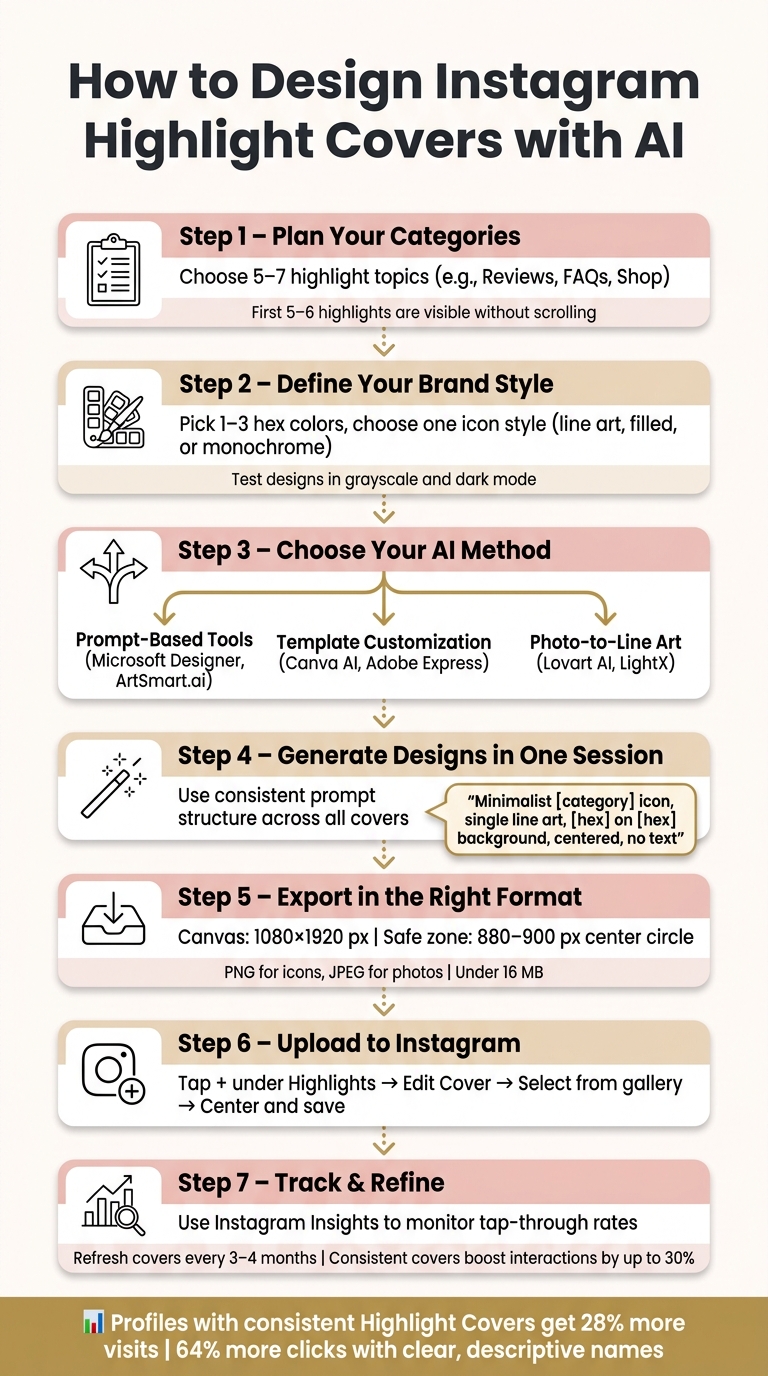
How to Design Instagram Highlight Covers with AI: Step-by-Step
Once you've defined your brand style, it's time to design your highlight covers. AI tools make this process easier with three main approaches: prompt-based generation, template customization, and photo-to-line art conversion. Choose the method that best matches your skills and brand vibe, and let the tools do the heavy lifting.
Prompt-based tools like Microsoft Designer (free) and ArtSmart.ai (starting at $19/month) allow you to create custom icons from simple text descriptions - no design experience required.
Here's how to get started:
To keep your covers consistent, generate all of them in one session. Use the same prompt structure but swap out the icon subject (e.g., "shopping bag" for a Shop cover or "speech bubble" for a Reviews cover). This ensures your designs remain cohesive.
If starting with a blank canvas feels overwhelming, AI-powered templates might be a better fit.
Platforms like Canva AI and Adobe Express simplify the process with pre-built templates that you can tweak to match your brand. Both offer free options, while Adobe Express includes advanced branding tools in its paid plan.
Here’s how to customize templates effectively:
As Liz Mosley, owner of Liz Mosley Design, shares:
"I use Adobe Express to create and schedule a lot of my own content, which is essential for crafting engaging Instagram posts, and by creating templates for my own brand I have saved myself hours marketing my business!"
Stick to a consistent icon style and limit your color palette to one to three tones. This will maintain the cohesive look you established during the planning phase. Avoid mixing styles - like combining filled icons with line art - as it can disrupt the overall harmony.
For a distinct look, you can convert photos into line art. Tools like Lovart AI and LightX analyze an image's edges and contours, stripping away color to create clean, monochromatic linework.
Here’s how to do it:
"By stripping an image down to its core lines, you make it incredibly versatile." - ColorPageAI
Once the line art is generated, use the editing tools to clean up stray pixels and adjust line thickness. Export the final design as a PNG to preserve quality and avoid compression issues that can occur with JPEGs.
These AI tools make the process of creating highlight covers not only efficient but also tailored to your brand's unique aesthetic.
Once you've created your highlight covers using AI, here's how to ensure they look great on Instagram. Follow these steps to export, upload, and fine-tune them for the best results.
Before uploading, make sure your files meet Instagram's specifications. The ideal canvas size is 1080 × 1920 pixels with a 9:16 aspect ratio - this matches the dimensions of an Instagram Story. Instagram will crop this vertical image into a circle for your profile, focusing on the center 1080 × 1080 square.
To avoid important parts being cut off, keep your design within a centered safe zone of 880–900 pixels. Since highlight covers are displayed at about 115 × 115 pixels on most mobile screens, opt for simple, bold designs that remain clear even at smaller sizes.
For file types, consider:
Also, stay organized with file size and naming:
Uploading custom covers is simple and can be done directly from your camera roll.
For a new highlight:
To update an existing highlight:
During the cropping step, pinch to zoom or reposition the image to ensure your icon is perfectly centered.
Once your covers are live, check how they look on your profile. A polished, cohesive appearance is key. View your covers in both light and dark modes, as Instagram's dark mode can make low-contrast designs blend into the background. If your icon fades or is hard to see, adjust the contrast and re-upload.
Refreshing your covers occasionally can keep your profile looking updated. A well-maintained, cohesive set of highlight covers can boost profile interactions by up to 30%. Use Instagram Insights to monitor which highlights get the most attention, and use that data to refine your designs over time.
When creating highlight covers, consistency is key. Instead of designing them one at a time, generate the entire set in a single session. Use the same base prompt and a master template to keep elements like borders, background colors, and alignment consistent across all covers. This ensures a uniform structure throughout your profile. Stick to one icon style - whether that's minimalist line art, solid shapes, or 3D icons. Mixing styles can disrupt the visual harmony of your profile.
A structured AI prompt can make all the difference. For example: "Minimalist [category] icon, single line art style, [hex code] on [hex code] background, centered, no text, high resolution." Use a color picker to extract exact hex codes from your existing posts for a perfect match, rather than relying on guesswork.
Even with a solid design plan, AI-generated covers can sometimes have flaws. Here’s how to address the most common issues:
Your highlight covers shouldn’t be static elements - they should evolve alongside your profile. Use Instagram Insights to monitor performance. For instance, track which highlights get the most taps and position these in the first five slots, as they’re the most visible on most devices. If a highlight has a high exit rate (users leaving after the first story), it might signal issues with the design or labeling.
UpGrow’s real-time analytics dashboard is a powerful tool for connecting design tweaks to engagement shifts. If you update your covers and see an increase in profile visits or interaction rates, it’s a clear sign the changes paid off. Regular audits every three months help ensure your covers reflect your brand and content direction. Profiles that refresh their covers every 3–4 months may also see a boost in visibility, as Instagram favors accounts with consistent activity.
| Instagram Metrics to Track | What It Tells You | Action to Take |
|---|---|---|
| Tap-through rate | Which categories attract the most interest | Move top performers to the first 5 slots |
| Profile interaction rate | How effective your first impression is | Refresh covers if engagement drops |
| Visit duration | Whether users explore or leave quickly | Simplify designs to improve navigation |
Instagram highlight covers play a crucial role in shaping how visitors perceive your profile. Think of them as your profile's visual navigation bar, guiding visitors and giving your page a polished, intentional feel.
"A profile with thoughtful highlight covers feels intentional and trustworthy. A profile with default cover thumbnails... reads as low-effort." - ViewIGStory
Thanks to AI tools, creating professional-quality designs is now within everyone's reach. These tools can help you craft a cohesive set of covers in minutes. Use AI as your creative jump-off point - build a base, then tweak the designs to match your brand's personality.
Armed with these tips, you're ready to take action and elevate your profile.
Start by identifying 5–7 key highlight categories. Then, lock in your brand colors using precise hex codes from your existing content and design your entire set in one go to keep the look consistent. After updating your covers, use tools like UpGrow's analytics dashboard to track changes in profile visits or engagement. This data-driven approach helps you fine-tune your strategy over time. This is a key part of a successful Instagram marketing strategy. For a fresh look, consider updating your covers seasonally - 2 to 4 times a year should do the trick.
"AI has become a valuable assistant for Instagram creators, simplifying highlight cover design and ensuring visual consistency across profiles." - ArtSmart.ai
To keep your Instagram highlight covers visually cohesive, use a prompt that clearly defines one aesthetic, a specific color palette, and a consistent icon style. For instance: "Design minimalist Instagram highlight covers using [Color 1] and [Color 2], with simple line art icons representing [Category A], [Category B], and [Category C]."
You can also include a reference image, such as your brand logo, to guide the AI in matching the texture and colors for a unified look.
To make sure your design fits perfectly, start with a 1080x1920 pixel canvas. Instagram highlights the center 1080x1080 square with a circular mask for profile covers. To keep important elements like text or icons fully visible, position them within a centered safe zone of 700–880 pixels in diameter. This way, your design remains intact and unclipped on different mobile screens.
Updating your Instagram highlight covers can make a big difference when launching a new campaign, rebranding, or giving your profile a fresh look. It’s a good idea to update these covers at least every few months to keep things current. While there aren’t specific metrics to measure the performance of highlight covers alone, you can track overall profile engagement to see if they’re making an impact.
Well-designed, consistent, and clear covers do more than just look good - they help users navigate your profile easily and can strengthen their trust in your brand.